Setting up Sign in with Slack links
Interested parties should reach out to partnersupport@slack-corp.com for more information.
The Sign in With Slack (SIWS) link, built on the OpenID Connect (OIDC) protocol, allows a user to share their Slack information with you when they click on a link from your service. This can happen without your app being installed in a workspace.
There are two Sign in with Slack entry points:
- A user clicks on a link in Slack and is forwarded to you with identity info in the URL, giving you the option of dealing with the user without having to ask them to approve access.
- A user pastes a link from your domain in Slack's composer and wants to activate the Unfurl Preview.
Once you receive the user’s information you can decide whether to create an account, redirect them to the resource they initially clicked on, or implement another flow that makes sense for you.
Prerequisites
- You have a Slack app using granular permissions.
- You have implemented Sign in with Slack using OpenID Connect.
- You have migrated any existing legacy implementation using
identity.*scopes.
Creating a test app
In order to properly utilize SIWS entry points you will need to provide Slack with the following:
- The domain to enable. This must be a different domain than your production domain for testing and building.
- The dev
app_idyou want to use to build on Sign in with Slack links. - The team
nameoridwhere the app lives, to enable it for Domain Verification. - Any team names or ids you want to use to test the feature.
- The dev URL where you want us to send users after they click on an SIWS link.
Then complete the following steps for your app:
-
Add the following user scopes to your app setup in Slack.
-
Enable public distribution. This is required for using an OAuth flow. You do not need to actually publicly distribute your app.
-
Add a background color and icon under the Basic Information tab.
-
Add a privacy URL under the Basic Information tab.
-
Add a ToS URL under the Submit to Slack Marketplace tab: “Security & Compliance Section” > “General” > “Terms of Service URL”.
-
Follow the Domain Verification steps under Settings in your App dashboard. The prompt will look similar to the following:
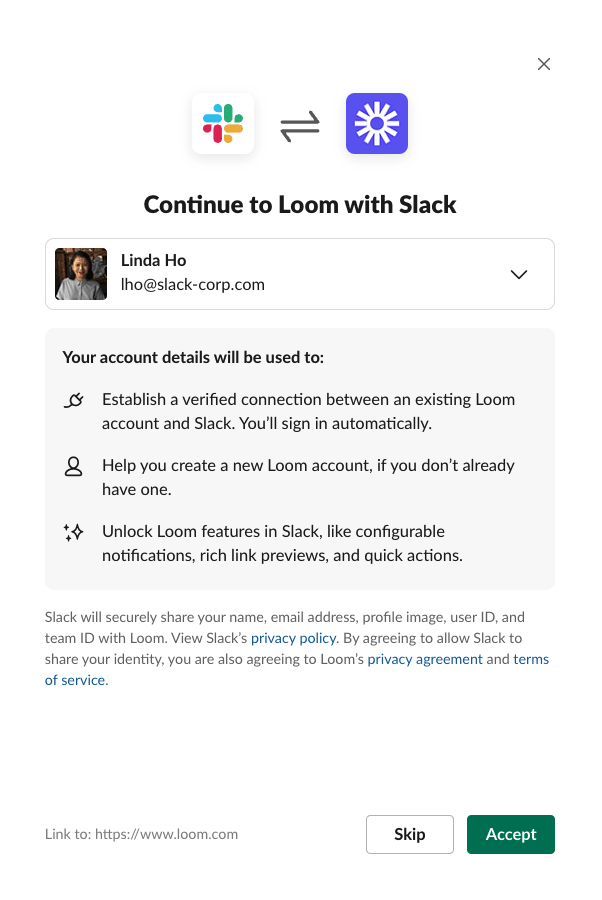
If the user clicks Skip, we will redirect to the link clicked. If a user declines three times, they will no longer see the prompt.
Identity transfer
When a user clicks on a Sign in with Slack link in Slack, they will be redirected to the URL you provided along with the parameter, login_hint; a JSON Web Token. This will contain a base64 encoded value with 3 parts:
-
The Header is used to determine how to verify the signature. It will always contain:
"Header": {
"alg": "RS256",
"typ": "JWT"
} -
The Payload will contain all the info you need to understand who the user is that clicked on the link.
-
The Signature should be verified using the implementation or service of your choice.
When you receive the payload from an Sign in with Slack link it will look like:
{
    "iss": "https://slack.com",
    "sub": "test@slack-corp.com",
    "aud": "533193414769.1727340817111",
    "exp": 1614211080,
    "iat": 1614210780,
    "auth_time": 1614210780,
    "https://slack.com/user_id": "W123ABC456",
    "https://slack.com/team_id": "T123ABC456",
    "https://slack.com/target_uri": "https://grask.me/testing"
}
The https://slack.com/target_uri is the URL that the user initially clicked on in Slack. Use this URL to redirect the user.
When you receive the payload from calling the openid.connect.token endpoint there will be different data:
{
    "ok": "true",
    "access_token": "xoxp-...",
    "token_type": "Bearer",
    "id_token": {
   "iss": "https://slack.com",
   "sub": "W123ABC456",
   "aud": "533193414769.1727340817111",
   "exp": 1614211245,
   "iat": 1614210945,
   "auth_time": 1614210945,
   "nonce": "",
   "at_hash": "hkx6S31Hj18nDUFljRvr2A",
   "email": "test@slack-corp.com",
   "locale": "en-US",
   "name": "Stewart Butterfield",
   "given_name": "Stewart",
   "family_name": "Butterfield",
   "picture": "https://avatars.slack-edge.com/2019-09-27/123456..._512.png",
   "https://slack.com/user_id": "W123ABC456",
   "https://slack.com/user_image_24": "https://avatars.slack-edge.com/...",
   "https://slack.com/user_image_32": "https://avatars.slack-edge.com/...",
   "https://slack.com/user_image_48": "https://avatars.slack-edge.com/...",
   "https://slack.com/user_image_72": "https://avatars.slack-edge.com/...",
   "https://slack.com/user_image_192": "https://avatars.slack-edge.com/...",
   "https://slack.com/user_image_512": "https://avatars.slack-edge.com/...",
   "https://slack.com/user_image_1024": "https://avatars.slack-edge.com/...",
   "https://slack.com/team_id": "T123ABC456",
   "https://slack.com/team_name": "Finance",
   "https://slack.com/team_domain": "finance-greggdemo",
   "https://slack.com/team_image_34": "https://avatars.slack-edge.com/...",
   "https://slack.com/team_image_44": "https://avatars.slack-edge.com/...",
   "https://slack.com/team_image_68": "https://avatars.slack-edge.com/...",
   "https://slack.com/team_image_88": "https://avatars.slack-edge.com/...",
   "https://slack.com/team_image_102": "https://avatars.slack-edge.com/...",
   "https://slack.com/team_image_132": "https://avatars.slack-edge.com/...",
   "https://slack.com/team_image_230": "https://avatars.slack-edge.com/...",
   "https://slack.com/target_uri": "https://grask.me/testing"
    }
}
Storing user data
You can choose which fields of this payload to store as you associate the Slack user identity to a user of your service. We recommend at a minimum storing email, sub or user_id, name, and access_token.
The access_token will serve to unlock some pre-installation platform features of your app.
links.accountLinkedResult
After a user has gone through the OIDC flow, send the results to a Slack hosted endpoint. This endpoint should be called on every OIDC identity exchange (every time the user clicks on an identity link or uses the Sign in with Slack social login button).
You can call the endpoint with the token you receive during the OIDC flow:
curl -X POST \
      https://slack.com/api/links.accountLinkedResult \
      -H 'Authorization: Bearer xoxp-....' \
      -H 'Content-Type: application/json;charset=utf-8' \
      -d '{
            "team_id":"T123ABC456",
            "user_id":"U123ABC456",
            "result": "NEW_ACCOUNT_CREATED",
            "source": "IDENTITY_LINKS",
     }'
| Parameter | Description | Format |
|---|---|---|
user_id | The Slack user_id returned during OIDC. | U123ABC456 |
team_id | The team_id returned during OIDC. | T123ABC456 |
result | Action taken by partner system every time user goes through OIDC. See below. | One of NEW_ACCOUNT_CREATED, UNLINKED_ACCOUNT_LINKED, LINKED_ACCOUNT_LOGGED_IN, IGNORED_DUE_TO_EXISTING_SESSION, ERROR_DETECTED |
source | Initiation source for OIDC exchange. | One of SOCIAL_LOGIN, IDENTITY_LINKS. |
The result parameter:
| Value | Description |
|---|---|
NEW_ACCOUNT_CREATED | A new account was created and linked to a Slack identity, and the user was logged into that account. |
UNLINKED_ACCOUNT_LINKED | The user was logged into an existing unlinked account which was linked for the first time. |
LINKED_ACCOUNT_LOGGED_IN | The user was logged into an account that was previously linked. |
IGNORED_DUE_TO_EXISTING_SESSION | An existing session was found, and no action was taken as a result. |
ERROR_DETECTED | Any detectable error in the flow, either because of Slack or your service, that prevents one of the other results from being reached. |
Reset a user’s selection for testing
See this help desk article.
Sign in with Slack kill switch
Utilize the apps.links.toggle endpoint to enable or disable the SIWS links feature. This POST request requires two arguments:
| Field | Description |
|---|---|
token | An app level token to verify the app and the required scope permissions. Requires the app_configurations:write scope. Can be found by going to the "Basic Information" with the app settings page. It'll be listed under "App Level Token". |
status | Accepts enable or disable in order to determine if the feature is enabled. |
You can provide the token argument as the Bearer Token.
Troubleshooting
| Error | Suggestion |
|---|---|
invalid_app_icon | Check your app setup above. |
invalid_app_icon_background | Check your app setup above. |
invalid_app_privacy_link | Check your app setup above. |
invalid_app_tos | Check your app setup above. |
uri_not_handled_by_app | Contact Slack. |
If the modal doesn't open and there are no errors, the user may have declined to share their identity. You can reset this.
Try this trick for using Chrome (on a Mac) to capture the network hops and login hint. First quit Chrome, then from terminal run:
/Applications/Google\ Chrome.app/Contents/MacOS/Google\ Chrome --auto-open-devtools-for-tabs