Deploying to Vercel
This guide walks you through preparing and deploying a Slack app using Bolt for JavaScript, Workflow DevKit's DurableAgent, AI SDK tools, the Nitro server framework, and Vercel.
When you’re finished, you’ll have this ⚡️Slack agent template to run, modify, and make your own.
Prerequisites
First things first, take a few moments to set up the following:
- Make sure you have a development environment where you have permission to install apps. You can get a free sandbox with the Slack developer program.
- Ensure you have an account with a Git provider (GitHub, GitLab, or Bitbucket).
Create a new Vercel project
Create a new Vercel project based on a Bolt for JavaScript template by clicking the button below.
You will then be prompted to select a Git provider. Select your preferred provider and log in.
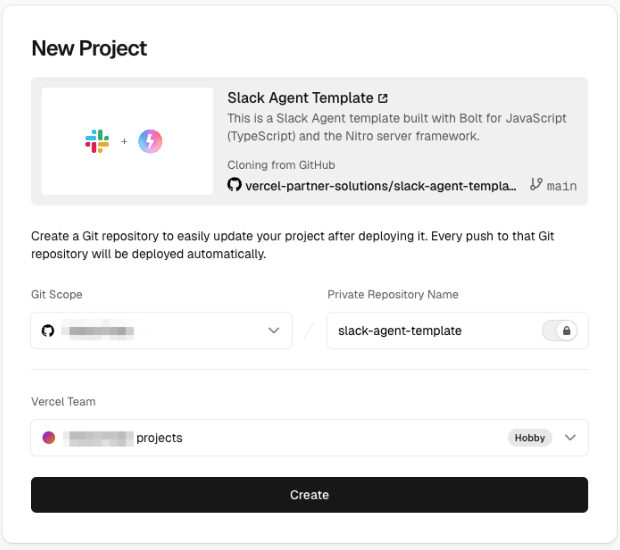
Select your provider as the Git Scope and rename the repo if you'd like. Next, click Create.
Keep this browser tab open; we'll be back to it soon. Next, we'll need to add a couple of variables for our app. To obtain these, direct your attention to the Slack app settings page.
Create a Slack app
Create a new Slack app through this link, then select from a manifest. Next, choose a workspace you have permission to install apps in. Click Next, then copy and paste the project manifest code here, replacing the placeholder text in the JSON tab.
loading...
Click Next and then Create.
Install app
Still in the app settings, navigate to the Install App section and click the button to install your app to the workspace. After installing the app, a bot token will be available. Copy this token and paste it in the Vercel setup where it says SLACK_BOT_TOKEN.
Back in the Slack app settings, navigate to the Basic Information section and find the Signing Secret. Copy this token and paste it in the Vercel setup where it says SLACK_SIGNING_SECRET, then click Deploy.
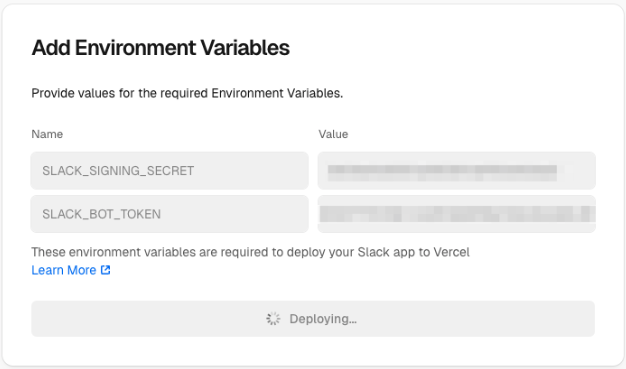
Now it’ll work through the deployment process and give you updates on what it is doing. Be patient. Deployment is hard work! Once it's finished, you'll see a confirmation screen with a button to Continue to Dashboard. Click that button. Here you can see that your app has been deployed! Use this dashboard to keep tabs on build logs, deployment checks and more.
Update URLs
Once the deployment has completed, navigate back to the Slack app settings and open the App Manifest from the sidebar.
Update the manifest so that all of the reference_url and url fields use your domain. Click Save and verify the URL.
Run the app
Open your Slack workspace and add your new app to a channel. Your app should respond whenever it is tagged in a message or sent a DM!
Your app is now set up to build and deploy whenever you commit to your repo.
Next steps
✨ Explore Vercel documentation here.
✨ Learn all about developing apps with AI features.